

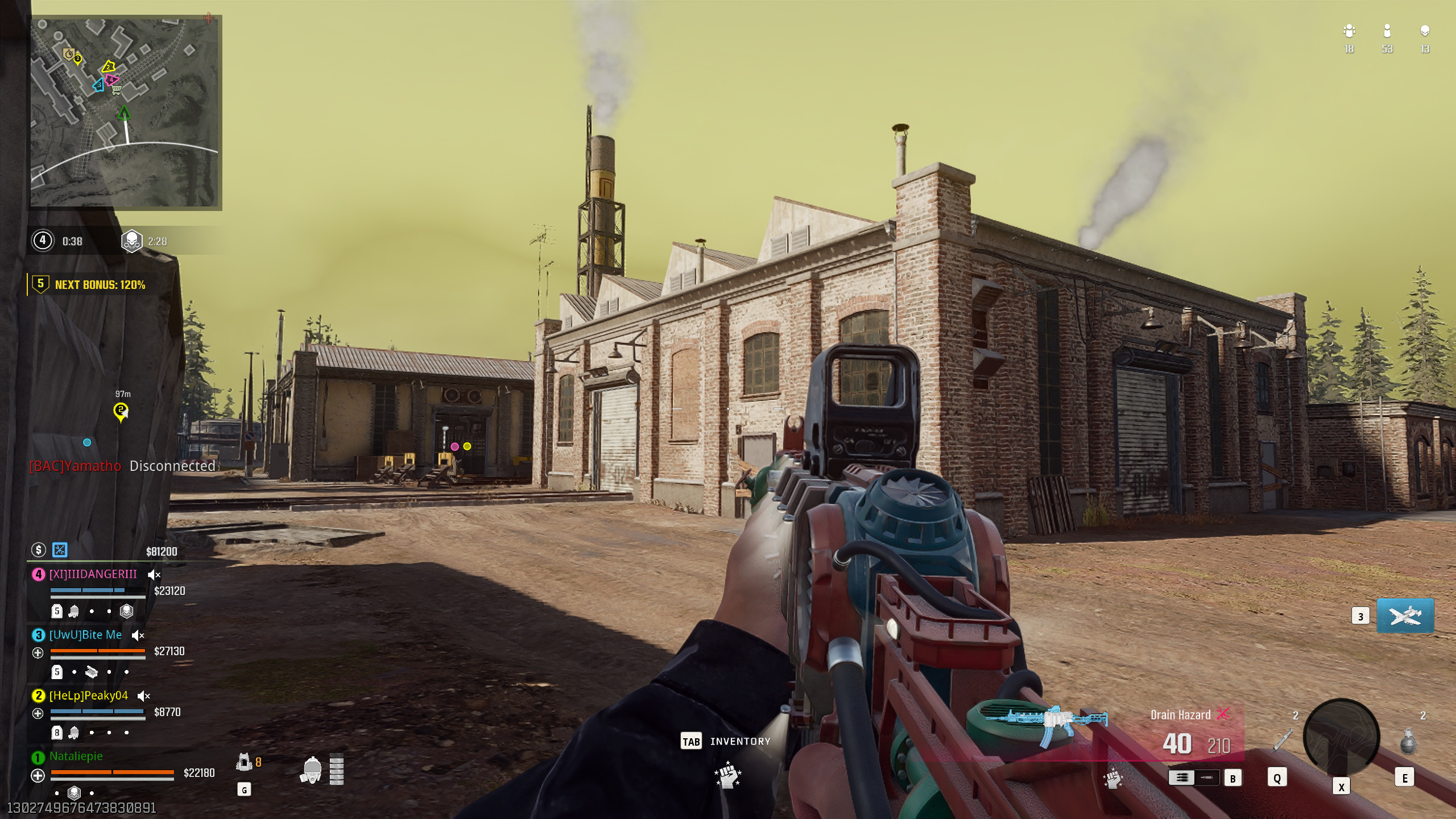
Precision aiming is the foundation of every Warzone victory. Whether you’re using a controller or mouse and keyboard, your setup defines how consistently you hit shots. In 2025, improved input systems and customizable sensitivity curves mean there’s no excuse for inconsistency. The right settings can turn raw skill into mechanical mastery.
This guide outlines the optimal controller and PC settings for Warzone players who want to maximize precision, comfort, and accuracy in every gunfight.
Controller Settings for Consistent Aim
Controller users benefit from fine-tuning sensitivity and response curves to match their reflexes. Start with moderate stick sensitivities—too high ruins tracking, too low slows reaction time. Many pros favor 6-6 or 7-7 horizontal/vertical sensitivity with **Dynamic Aim Response Curve** for smooth transitions.

Set Aim Assist to **Standard** or **Precision**, depending on your playstyle. Standard offers easier tracking for moving targets, while Precision favors pinpoint control during long-range fights.
Advanced Controller Adjustments
Don’t ignore fine details like **Deadzone** settings. Lower deadzones improve responsiveness but can cause drift if your controller is worn. Start around 0.05 and adjust gradually. Reduce input delay further by using wired connections instead of Bluetooth.
Button layout matters too—try **Tactical** to swap crouch and melee, allowing slide cancels without thumb movement. Small ergonomics tweaks can dramatically improve consistency.
PC Mouse Settings for Precision
PC players should prioritize stable DPI and sensitivity pairing. Most professionals play between 400–800 DPI with in-game sensitivity between 5–8. Disable mouse acceleration and ensure a consistent polling rate (1000Hz recommended). These ensure uniform aim speed across all engagements.

Match your Warzone settings to your desktop for seamless muscle memory, avoiding disorientation when switching between menus and gameplay.
Field of View and Visual Clarity
Your Field of View (FOV) affects how you perceive motion and aim targets. Console players should use the new **90–100 FOV range** for balance between visibility and control, while PC players can push to 110 for maximum awareness. However, too high FOV may make enemies appear smaller—find your comfort zone.
Combine your FOV with proper motion blur and sharpening settings. Turn off **Motion Blur** and enable **FidelityFX CAS** for clearer sightlines, especially when tracking fast targets.
Graphics and Performance Tweaks
Performance consistency supports aiming precision. Lock your frame rate near your monitor’s refresh rate and use **V-Sync Off** to reduce input delay. Lower shadows, reflections, and particle quality to maintain stable FPS even in intense fights. For competitive play, smoothness beats beauty every time.
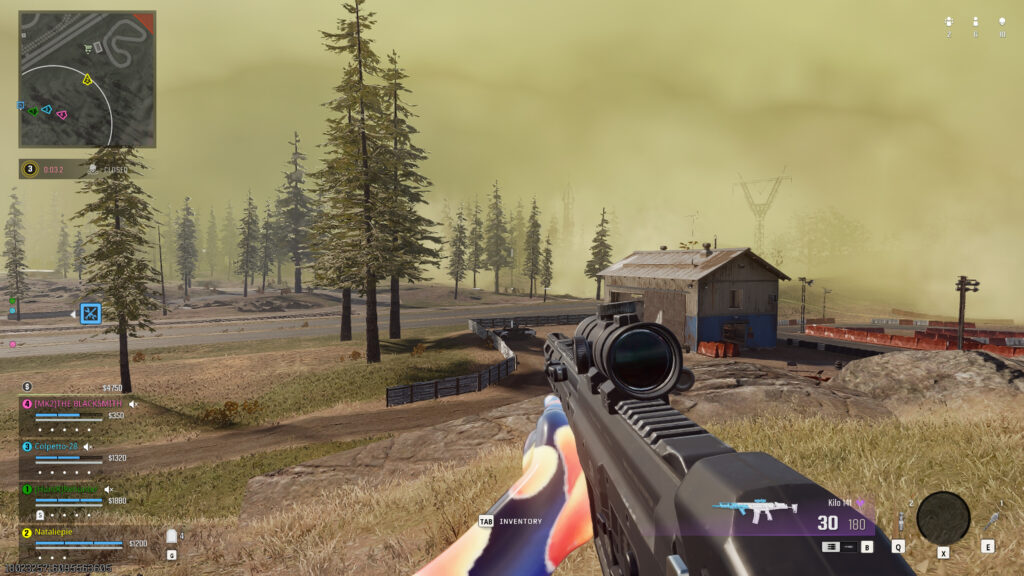
Stable frames keep aim assist, recoil tracking, and reaction timing predictable—giving you the edge during clutch moments.
Recommended Setup Overview
The table below summarizes the best settings for both platforms:
| Category | Controller Setup | PC Setup |
|---|---|---|
| Sensitivity | 6–6 or 7–7 (Dynamic Curve) | 400–800 DPI, 5–8 in-game sens |
| FOV | 90–100 | 100–110 |
| Aim Assist | Standard or Precision | Not applicable |
| Graphics | Balanced Quality Mode | Low-Medium Settings for FPS |
| Connection | Wired Controller | Wired Mouse & 1000Hz Polling |
Conclusion
Perfect aim isn’t just talent—it’s the product of consistent settings and practice. Whether you use a controller or mouse, focus on stability and comfort above all else. Adjust sensitivity slowly, prioritize visibility, and keep your frame rate smooth. Once your setup feels natural, precision will follow naturally.
In Warzone, precision isn’t luck—it’s preparation.
Leave a Reply